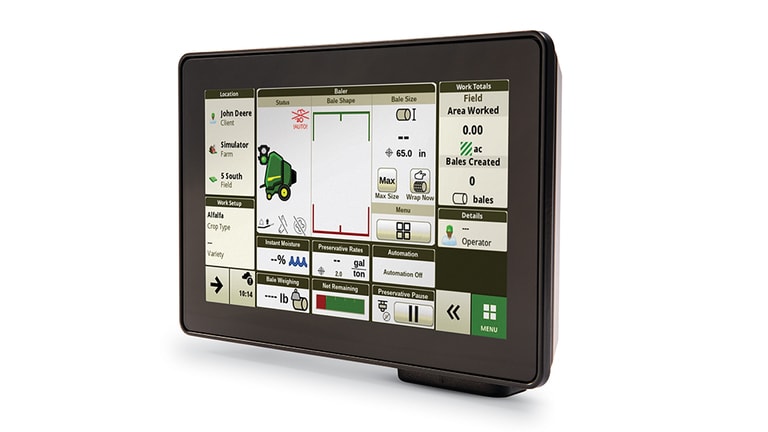
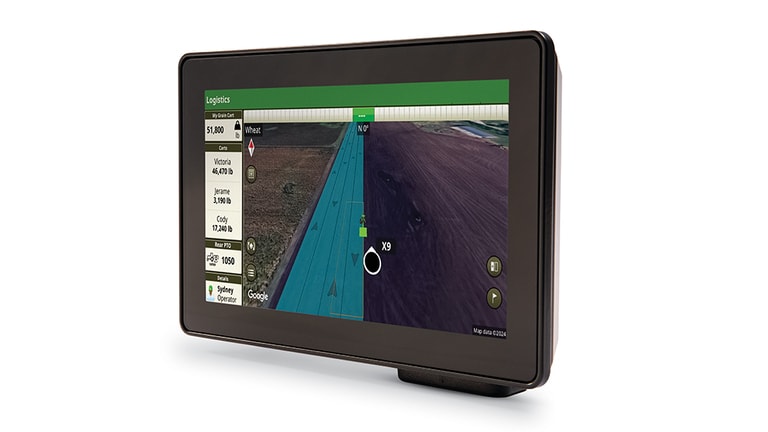
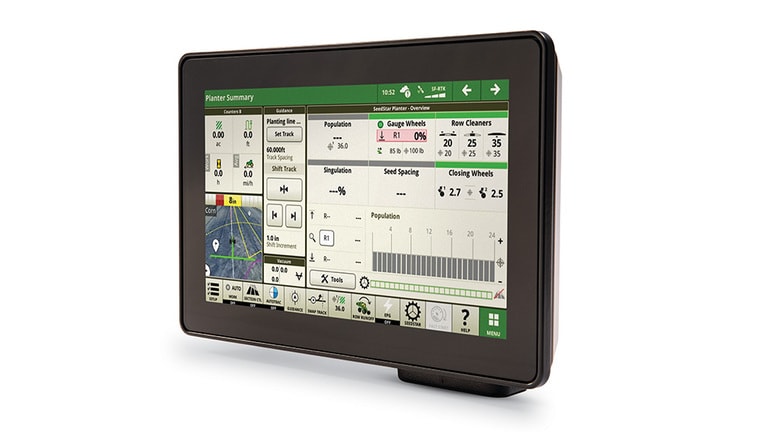
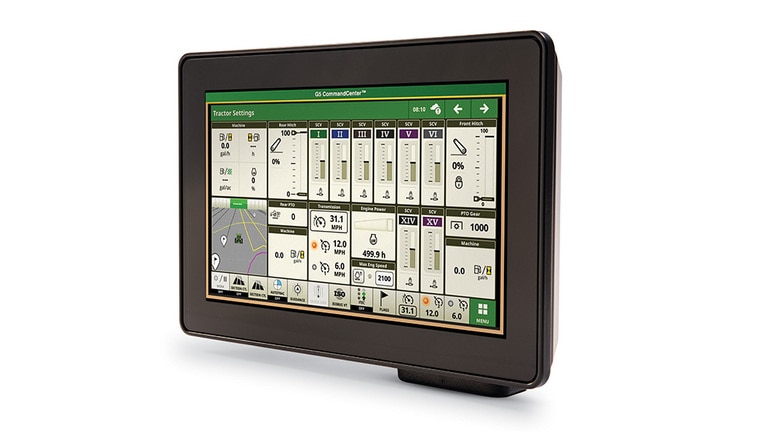
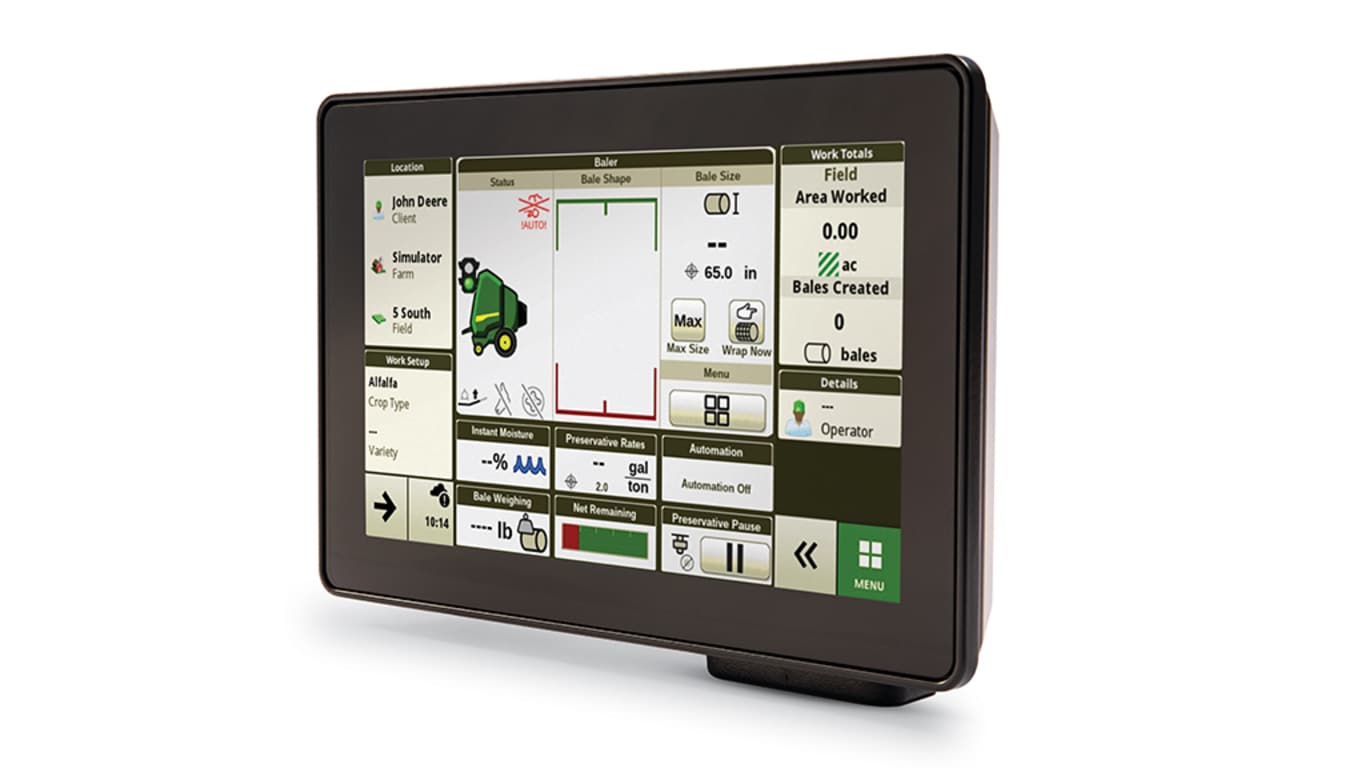
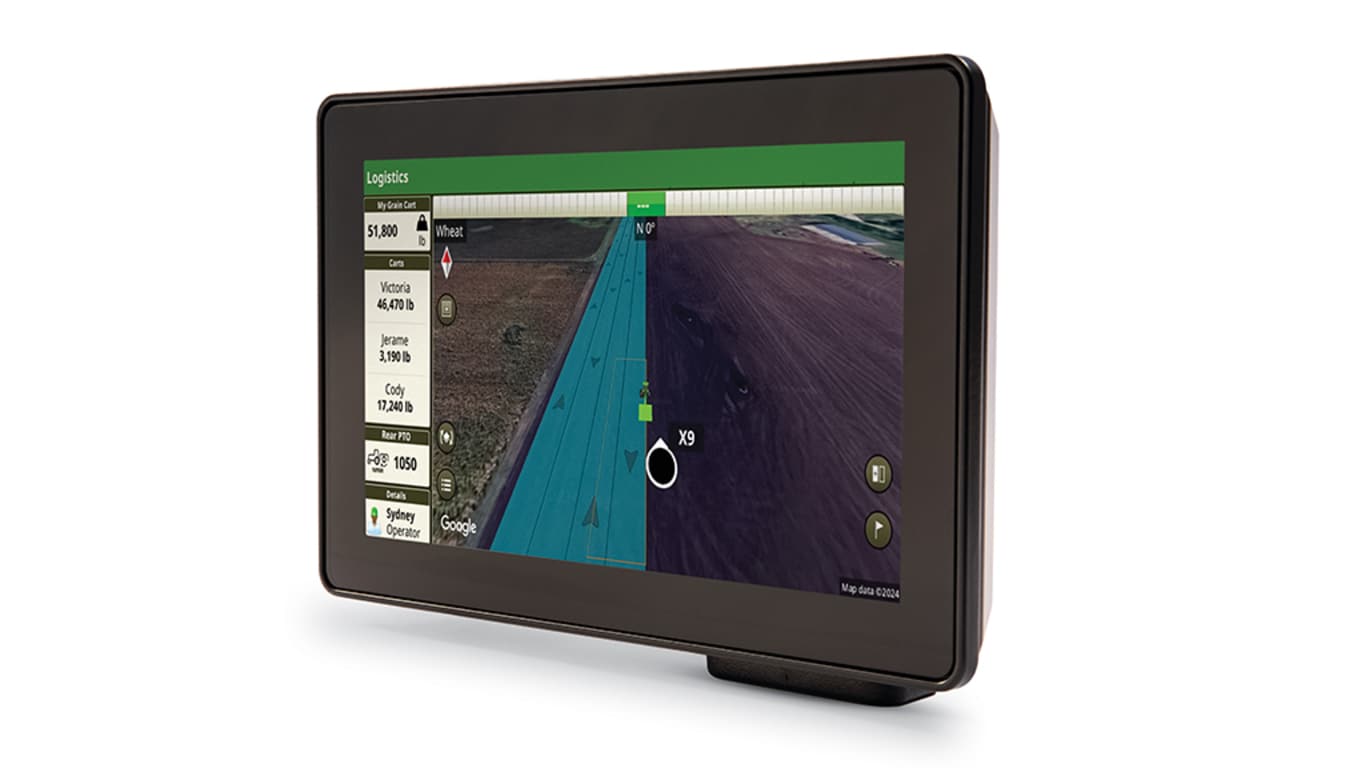
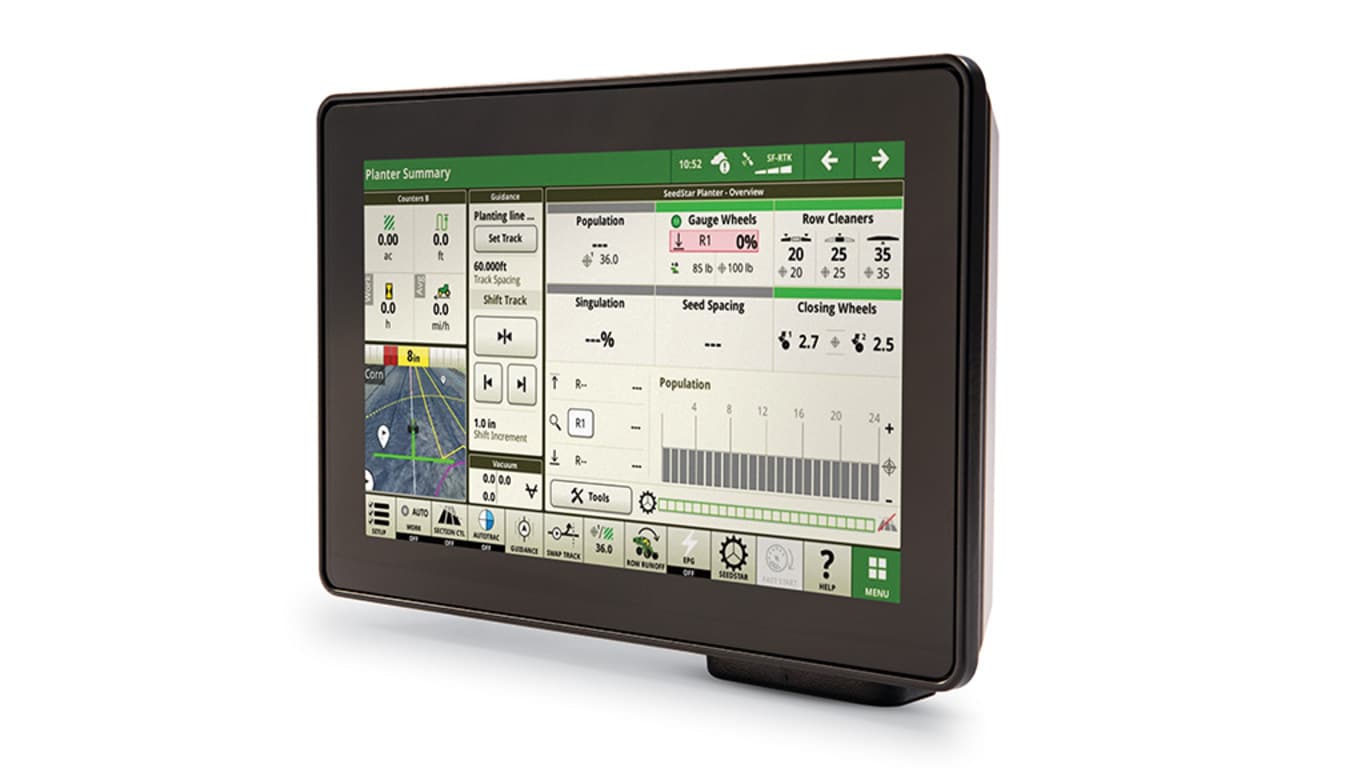
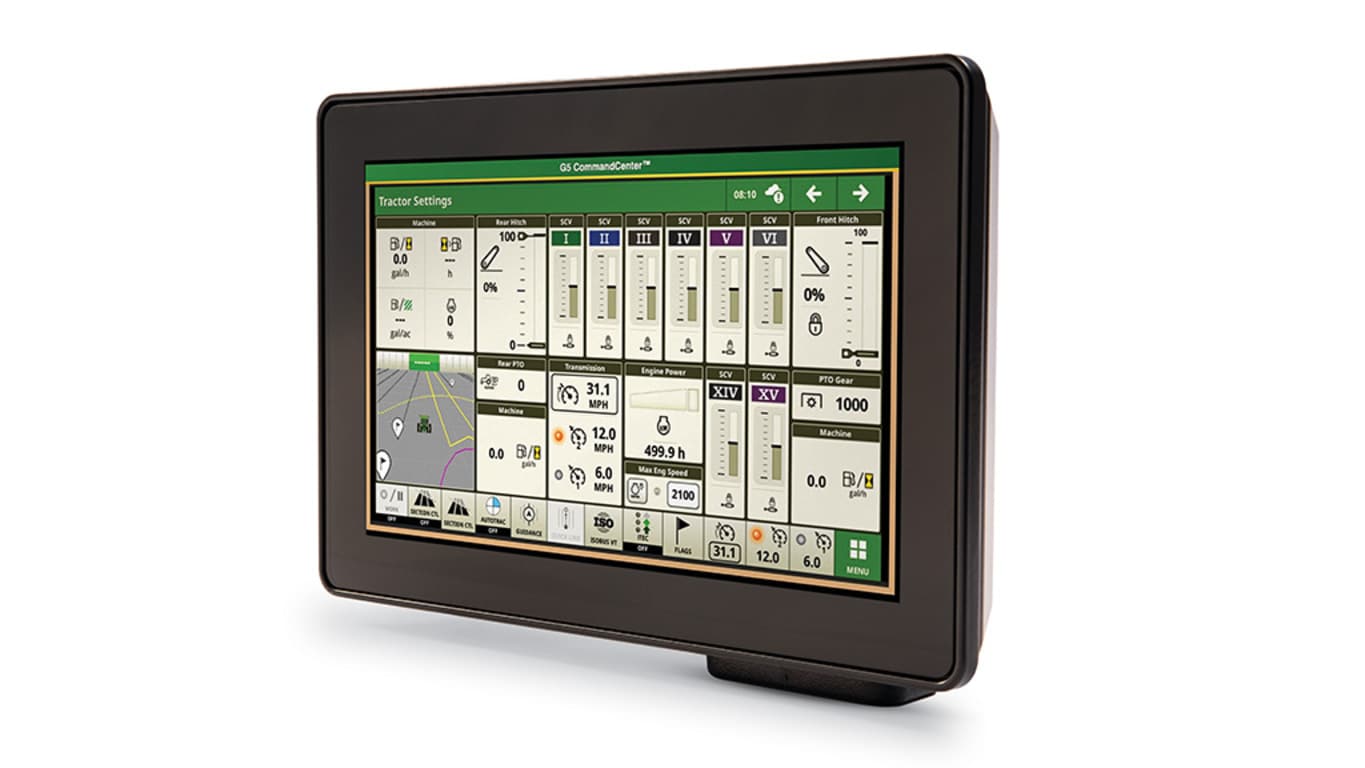
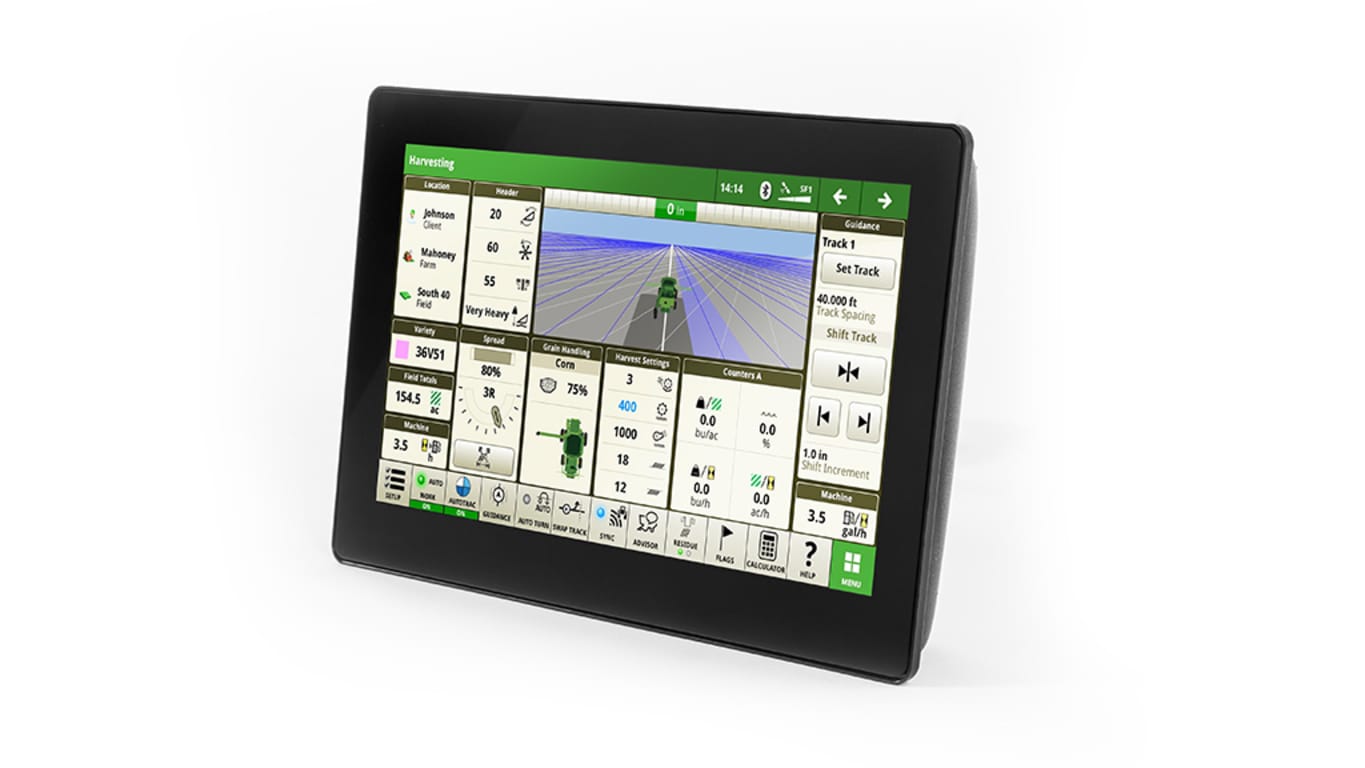
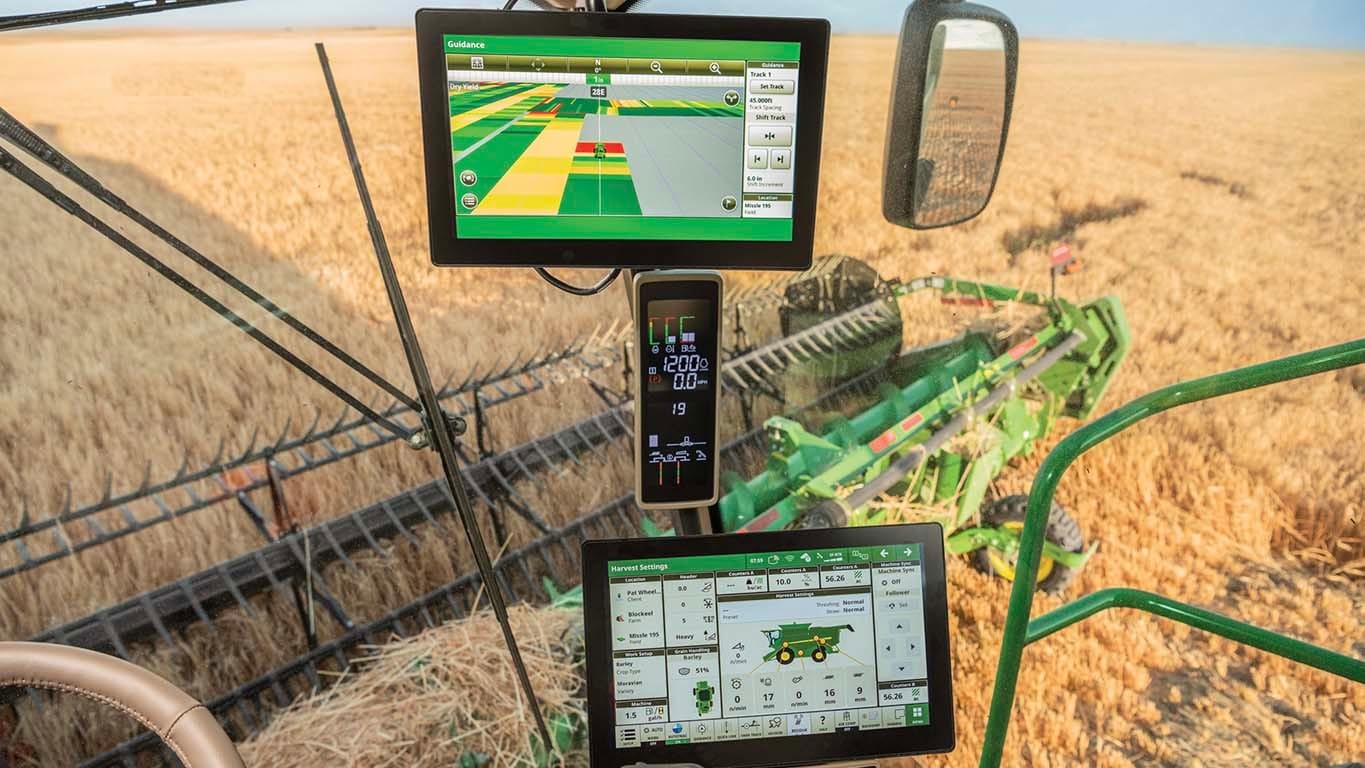
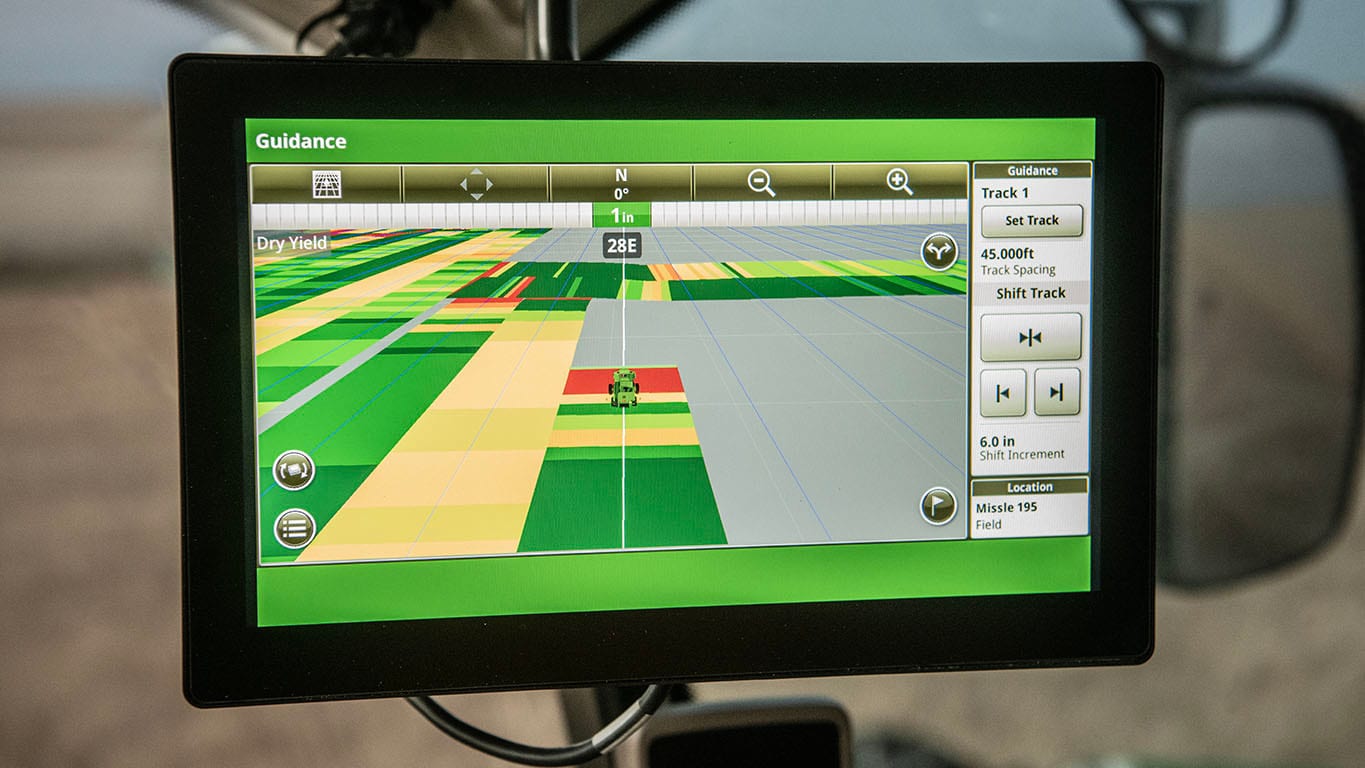
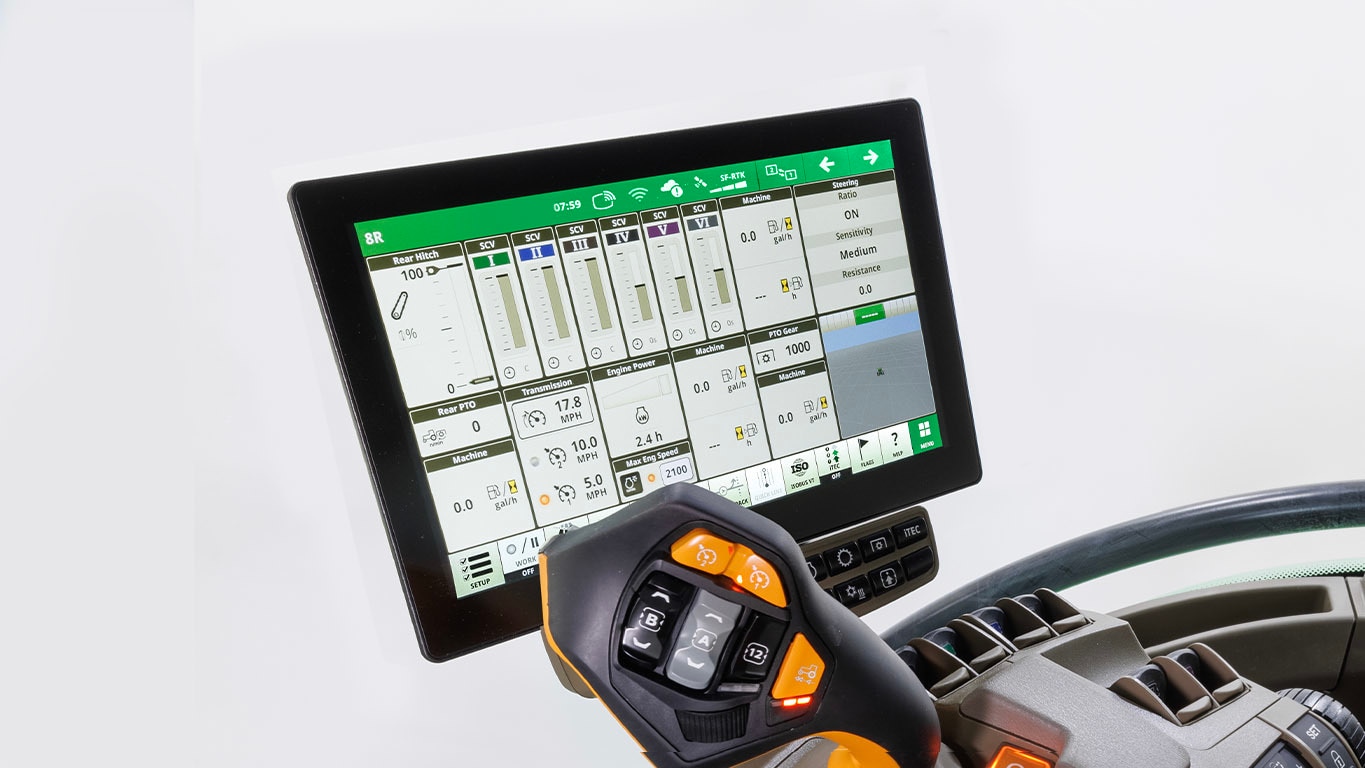
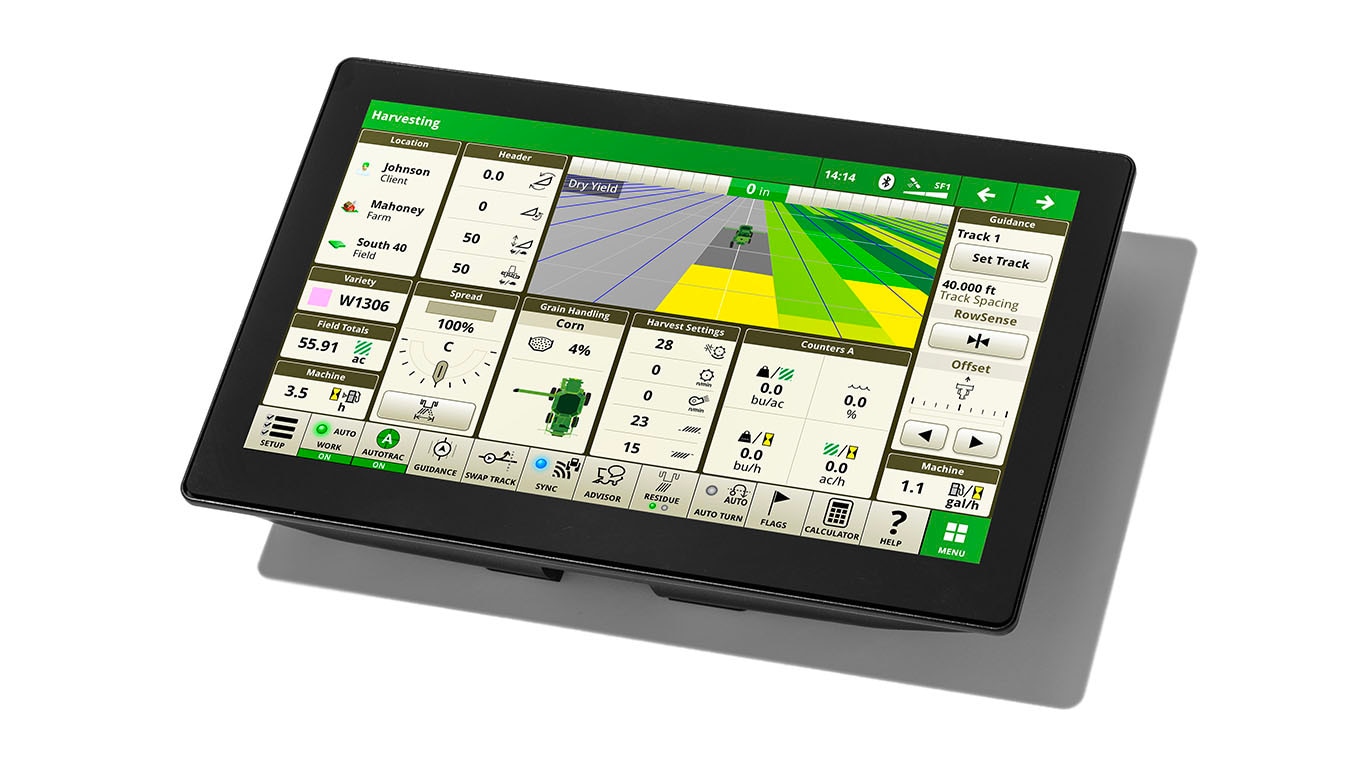
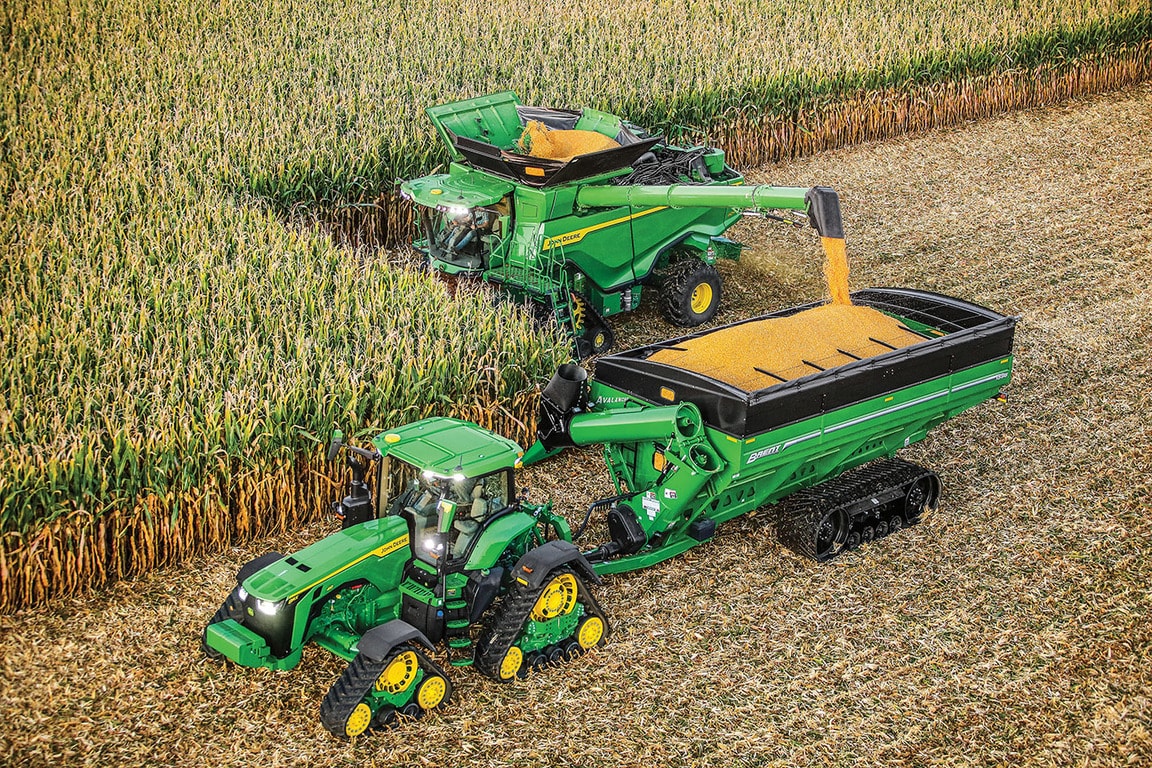
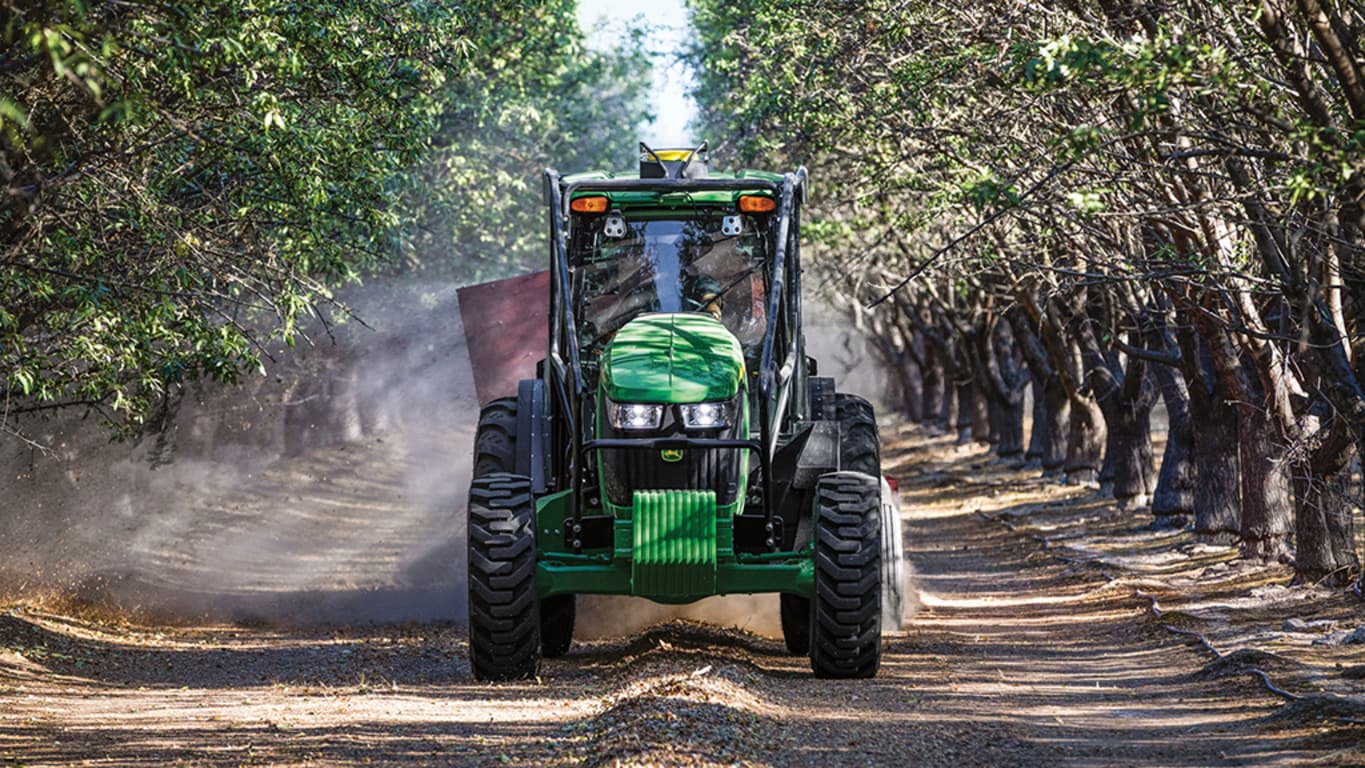
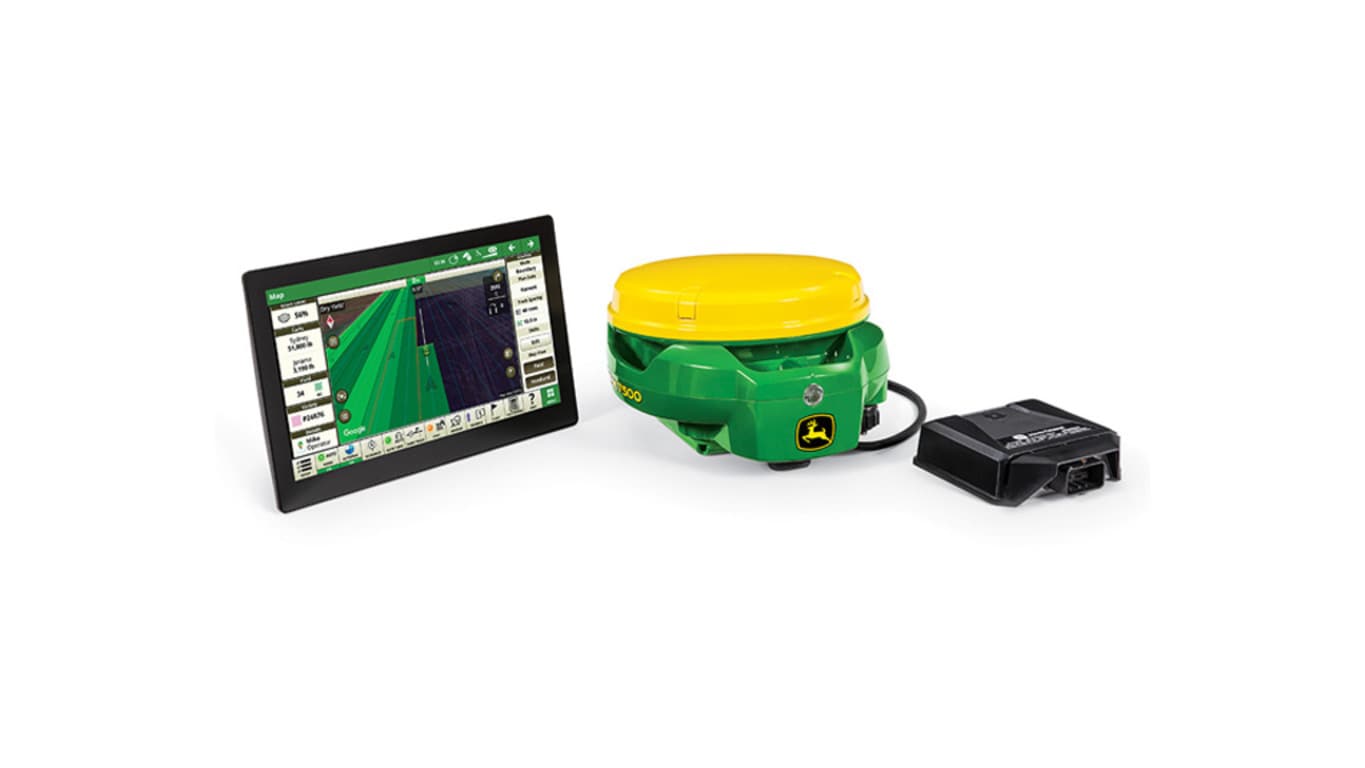
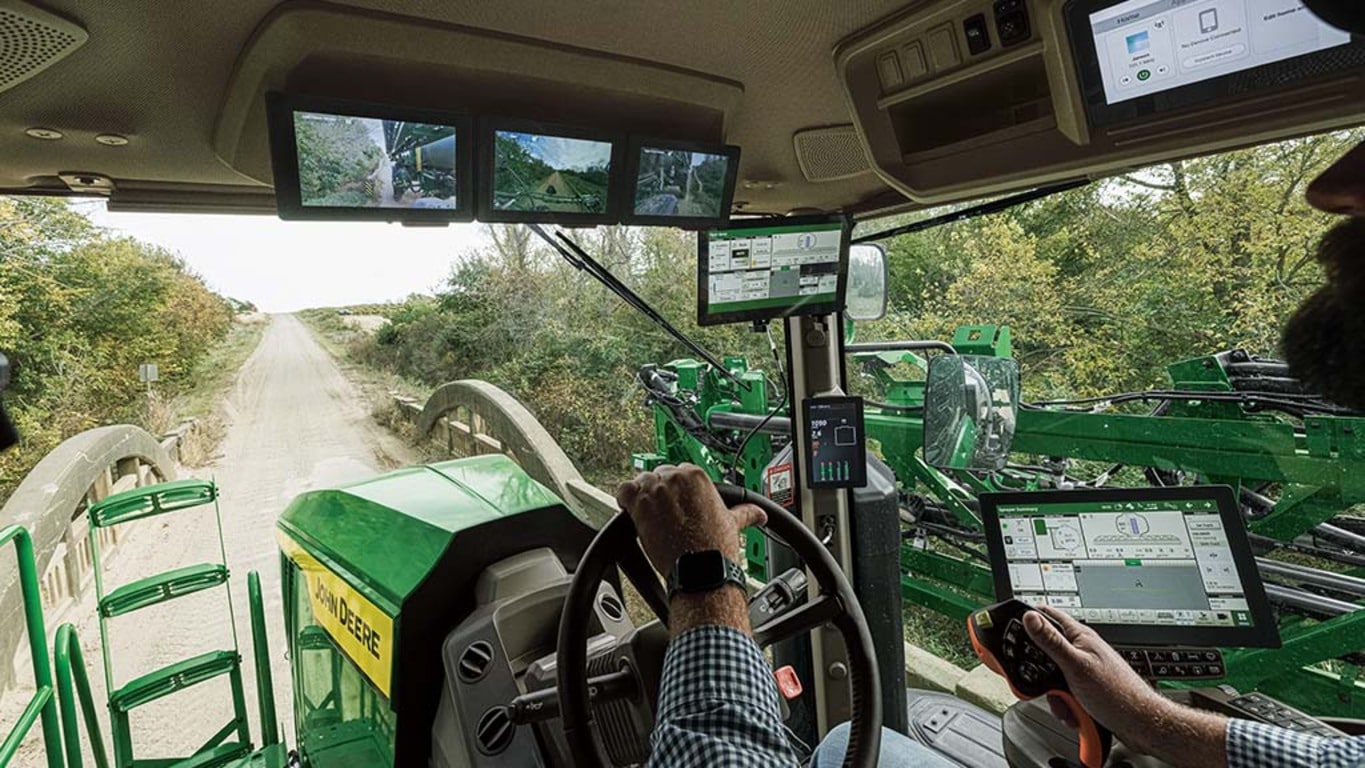
For the 1 Series Round Baler, the G5e ships from the factory with these three features included with the display so that you can easily monitor the functions of your implement:
- Documentation
- Data Sync
- Remote Display Access
Take advantage of the following features offered by the G5e Display:
C-Series Air Cart Specific Features:
Touch screen cart-side display
 Touch screen cart-side display
 The G5e Cart Side Display is located on the left side of the air cart
The weatherproof touch screen display will make navigating fill and calibration pages straightforward. Selecting the menu button on the lower right will allow the user to select:
- Meter calibration: preform an EZCal™ System or bag calibration without leaving the side of the air cart
- Tank fill: shows product weight and tank fill level
- Tank pressure: shows the differential pressure between the tank and the meter for each individual tank Monitor settings: allows the customer to adjust the brightness of the display
- Info: display and software information
Meter calibration
 EzCal System run page on G5e Cart Side Display
- Meter calibration is started and completed without leaving the air cart. Both EZCal™ and bag calibrations utilize the G5e Cart Side Display to calculate and send MDVs directly to the Gen 4 or G5 display in the cab without having to enter any values.
Tank product weight and fill level
 View each tank’s product weight all on one page
Tank pressure screen
 View each tank’s pressure all on one page
- The G5e Cart Side Display replaces the mechanical tank pressure gauges on previous air carts. Tank pressure for each tank will be individually displayed.
1 Series Round Baler Features:
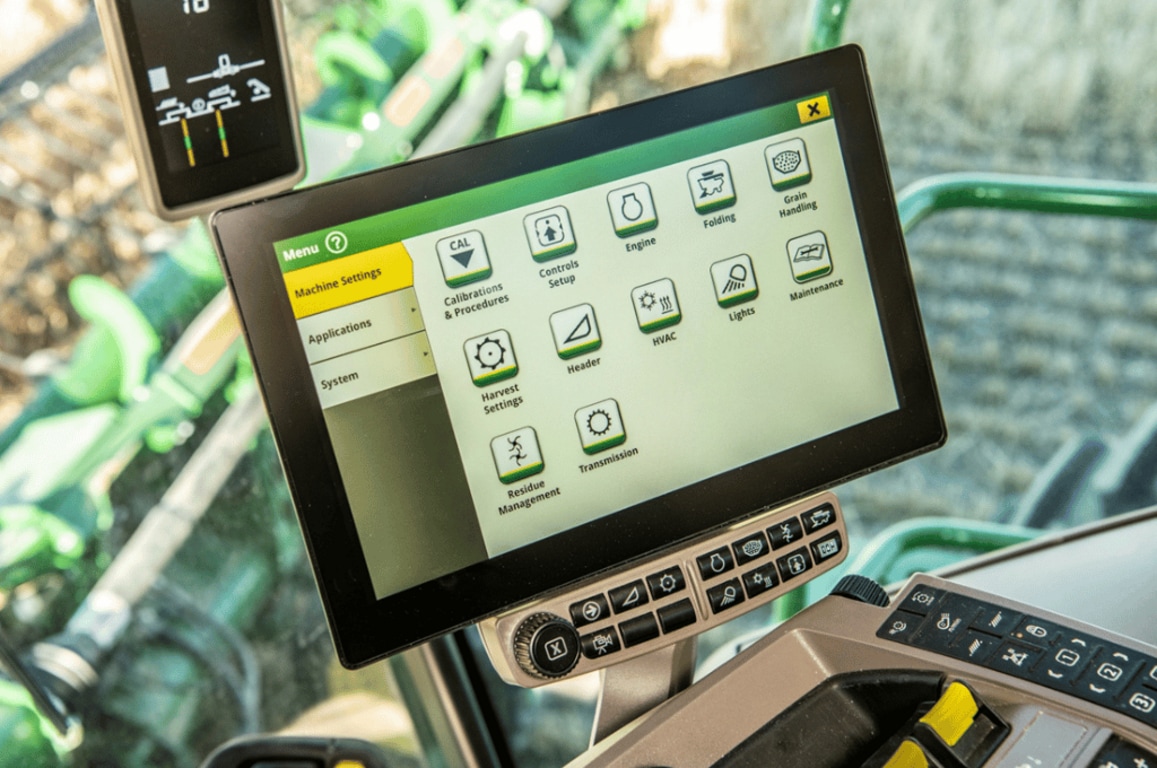
Machine Settings Tab
 Machine Settings
- View and edit maintenance and calibrations
Applications Tab
 Applications
The Applications tab allows the user to view and edit:
- Calculator
- Equipment Manager
- Fields and Boundaries
- Flags
- Help tool
- John Deere VT
- Layout Manager
- Mapping
- Overlap Control
- Remote Display Access
- StarFire
- Video
- Work Monitor
- Work Setup
- Work Totals
Equipment Manager
 Equipment Manager
- View and change settings and dimensions for the attached equipment
Documentation and Equipment Detection
 Implement profile
 Baler | Bale Drop Point
- Available for Ottumwa built MY24 1 Series Round Balers
Flags
 View of run page with flag options
- Mark areas in the field that need special attention such as rocks, tile lines, or weed pressure.
- Flags previously recorded on the G5, Gen4, or GreenStar™ 3 2630 Display can be transferred between monitors.
Layout Manager
 Layout Manager selection page
 Layout Manager application
- Easily create page views that meet user needs and that are also equipped with default run pages.
Work Monitor and Work Totals
 Work Monitor page
- The application displays performance information about the task being performed by the machine.
- You are shown averages, totals, and productivity of the machine, such as area worked, average working speed, and fuel usage.
- Work setup places the settings needed to properly setup features such as Documentation, and Section Control in a single location. Settings include:
- Client, farm, and field
- Crop type
- Machine and implement dimensions
- Variety/hybrid and planting/seeding rates
- Variable rate prescriptions
- Product and application rates
- Application rates through the implement screens
System Tab
 System tab
The System tab allows the user to view and edit:
- Date and Time
- Diagnostics Center
- Display and Sound
- File Manager
- Language and Units
- Software Manager
- Users and Access
- Wireless Settings
Language and Units
 Switch between active and alternate language in the display
Easily switch between languages with the option to set the active and alternate language. Configure the shortcut bar to include the language toggle allows different individuals to easily switch the display between languages.
*NOTE: This restarts the display.